
Info
 Home Page Articles Software Goodies
Explanations
How do they do that? The Web in FocusResources
Web Site Stuff Tech Books E-Books Tech Toys Web Hosting LinksWomen
Opinion Tech Women Women's StudiesTech News
Computer Security Databases Java Linux MP3 PC Software Robotics Site Owner Tech Latest Web Development XMLSpread the Word
Newsletter
Recommend this Page
Site Info
Legal Disclaimer
Privacy
Contact
Lighter Side
Crazy for Life crazy for romance Crazy for Kitties Crazy for Dogs Crazy for CowsCopyright 2000-2001, hertechnology.com
Rotating Text
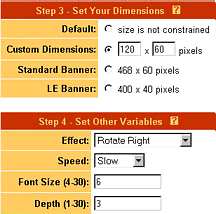
Steps 3 and 4. Select the size of your image and the font size and rotation
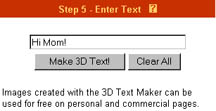
Step 5. Enter your text
Click on the Make 3D Text button, and you'll go to a screen that shows your rotating text. If you don't like the result, click the back button, make your changes, and click Make again.
Once you are satisfied, right-mouse-click on the rotating image to save the file to your hard drive. Now you can use it where ever you want. Here is the HTML for my image (with the GIF file being in a graphics subdirectory):
<img src="/graphics/Hi_Mom_06126.gif">
Just a few comments. In step 3, I chose 120 X 60 (120 pixels wide by 60 pixels tall). This is a standard small banner size. In step 4, you can also set additional parameters not shown in the figure. One of these parameters is number of steps in the rotation. The more steps the larger the GIF file. The file size of an animated GIF can get very large, so you need to be conservative with the size and the number of steps in the animation. When you create the GIF file, you will be told the size of the file.
Have fun creating your rotating text. But do remember, that a little animation goes a long way! Once again, here is the web site: 3D Text Maker
Want to bookmark this site? Press
Control-D. (Hold down the control key and the letter D at the same time.)