
Info
 Home Page Articles Software Goodies
Explanations
How do they do that? The Web in FocusResources
Web Site Stuff Tech Books E-Books Tech Toys Web Hosting LinksWomen
Opinion Tech Women Women's StudiesTech News
Computer Security Databases Java Linux MP3 PC Software Robotics Site Owner Tech Latest Web Development XMLSpread the Word
Newsletter
Recommend this Page
Site Info
Legal Disclaimer
Privacy
Contact
Lighter Side
Crazy for Life crazy for romance Crazy for Kitties Crazy for Dogs Crazy for CowsCopyright 2000-2001, hertechnology.com
Applet Marquee Wizard
Now you can control how long each individual slide is displayed and how long the transition from one slide to the next takes in milliseconds (so a value of 2000 equals 2 seconds). One fun thing is to choose the transition type. This controls how the next slide is displayed. The Cows at the Fair example shows a different transition for each slide. When you are done setting properties for the slide, close the window. (You can change the properties later.)
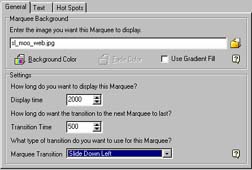
Setting Properties of a Slide
Click the New Marquee icon to bring up next slide and repeat the process described above for each slide. If you change the transition time and/or display time, make sure you change it for each slide, unless you want each slide to have a different time.
You can see what your slideshow looks like at any time by clicking on the Test in Browser icon. This will bring up your default browser and will start the slideshow.
Periodically save your applet in the marquee format .mwf using the File Save (or Save As) option. This saves your slideshow so you can bring it back up in the Applet Marquee Wizard and change it later. This format is NOT for using on the web.
Want to bookmark this site? Press
Control-D. (Hold down the control key and the letter D at the same time.)